
Sharing on Facebook how does it work?

Sharing with the Publisher

You'll use the Publisher to share things with your friends. You can access the Publisher in two places:
  • On your Timeline
  • At the top of the News Feed on your homepage
 

To post a status update:

One of the most common things people share on Facebook is a status update—a short text-based post your friends can read and comment on. When you post a status update, it will appear on your Timeline, as well as on your friends' News Feeds.
  1. Type your status update in the Publisher on the News Feed or your Timeline.
  2. Check the audience selector to make sure you're sharing the post with the desired audience. In this example, we only want to share with our friends on Facebook, so we'll leave this unchanged.
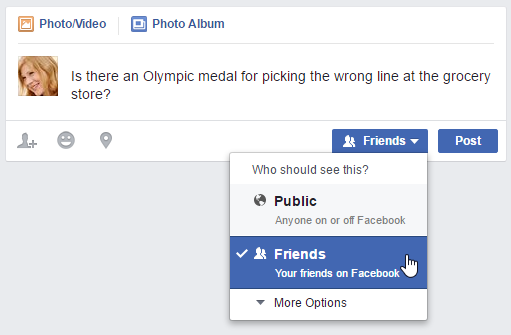
    using the audience selector
  3. Click Post. The status update will appear on your Timeline, on your News Feed, and on your friends' News Feeds.
    the status posted to the News feed

Posting on a friend's Timeline

If you want to share something with a friend, you can post it directly on that friend's Timeline. To do this, simply use the Publisher located on your friend's Timeline.
Note that you cannot control privacy settings for the things you share on your friends' Timelines. For this reason, you should think carefully before posting anything that might be considered inappropriate or embarrassing. If you don't want other people to see your post, you can send your friend a private message instead.

See more:

More types of sharing

Facebook allows you to share much more than just status updates. For example, you can share:
  • Photos: It's easy to share your photos on Facebook. Just click Photo/Video in the Publisher. You can then upload a photo from your computer, or upload several pictures at once to create a photo album.
  • Links: You can share a link to an article on the Web by typing or pasting the link into the Publisher.

    sharing a link to a website
  • Location: You can share your physical location by clicking the Location button in the Publisher. You can then choose your current location from a list of nearby places.

Comments

Popular posts from this blog

WAEC 2017/2018 Result Is Out : www.waecdirect.org Result Checker

How to check WAEC 2017 Result online ?   * Candidates should logon to WAEC result 2017/2018 website through www.waecdirect.org * Enter WAEC Examination Number. * Enter the Examination Year. * Select the Type of Examination. * Enter the Card Serial Number found on the reverse side of your Scratch card. * Enter the Personal Identification Number (PIN) on your Scratch card. * Click on the  submit button to get their result. * Candidates must take the hard copy of their result for further use.

How to Upgrade your JAMB Result to 250 and Above??

Jambites who want to upgrade their UTME results to 250 and above should endeavour to read through this article to get help before it’s too late. JAMB UTME 2014 has been been written. Results has been released and statistics shows that a good percentage of candidates scored 200 and below. Now candidates are looking for next move to take. Most of them didnt reach the cut-off mark for their desired University and or Polytecnic. The next thing on candidates in this situation is "How to Upgrade My JAMB UTME Result" Report reaching us has it that Desperate candidates who could not reach their desired mark are making moves to pay any amount to have their Results Upgraded. This post was made to enlighten candidates who Wish to upgrade their UTME score that there is nothing like Result Upgrade and anything you see about it online is Fake and was posted by scammers who wish to Collect your money and leave you Helpless. JAMB registrar Made this notice after Last year, 2013 ...

HOW TO GET 5GB or MORE FOR FREE ON MTN NETWORK

How To Get Free 5GB On Your MTN Sim!!! This Works Like Magic... You Wont Believe This... Just Follow The Steps Below. Note: It Doesnt Work On All SIMS... You Might Get an Error that You Have Insufficient Balance... NOTE:-YOU CAN NOT SEND THAT 5GB TO YOUR SELF FIND ANODA AND USE IT TO SEND TO YOUR SELF... Step 1: You Need To Register For MTN DATA Sharing by Dialing *131*2*1# Then You Will Need To Change Your Data Sharing Pin from Default (0000) to your prefered pin By Dialing *131*2*5# Step 2: After Changing Pin, You can Add Beneficiary. This is the number that you will send the 5GB to.. Dial *131*2*2# to Add the Beneficiary and then Put ur Pin after adding. Step 3. You will need to send the 5GB to the Beneficiary. Just Dial *131*3# Press Answer and Dial '5'. Answer again and Dial '4'. Answer again and dial '3'. Answer again and put Beneficiary's Number. Answer again and Put your Pin. Step 4. If your Sim Can Do It, Then The Beneficiary wil...